ALL3D glossary
360 product spin
A 360 product spin is an interactive sequence of product images that lets a shopper drag or swipe to view an item from a complete rotation around a fixed axis.
- turntable render
Definition
What is 360 product spin?
A spin is built from a series of evenly spaced frames captured or rendered around the same product. A web viewer advances through those frames as the shopper drags, making the item appear to rotate smoothly while its position, scale, lighting, and camera height remain consistent.
Unlike interactive 3D, a 360 product spin does not usually render a three-dimensional model in the shopper's browser. It presents a predetermined set of image angles, which makes it a focused way to add shopper-controlled inspection to a product detail page.
In one sentenceA 360 product spin turns a consistent sequence of product images into a shopper-controlled view around the item.
Business value
Why 360 product spin matters
A single product image can hide important construction details. A 360 spin gives shoppers more control over what they inspect without asking them to understand a complex 3D interface.
Reveal every side
Let shoppers inspect the front, sides, back, and in-between angles of a product from one consistent view.
Make inspection intuitive
Use familiar drag and swipe interaction so shoppers can move through the product at their own pace.
Show construction clearly
Expose details such as rear panels, hardware, depth, seams, and profiles that may not appear in a primary image.
Create a consistent catalog
Apply the same camera height, framing, lighting, and rotation pattern across products and variants.
The workflow
How a 360 product spin is created
Whether the source is a physical product or a 3D model, the workflow depends on a controlled frame sequence and consistent alignment.
- 1
Prepare and align the product
Center the product on its rotation axis and establish the camera height, distance, lighting, and crop that every frame will share.
- 2
Create the frame sequence
Capture the product on a physical turntable or render it at evenly spaced angles around a full rotation.
- 3
Check visual consistency
Review the sequence for shifts in product position, scale, exposure, shadows, materials, or background that could make the spin jump.
- 4
Publish in a spin viewer
Order and optimize the frames, then connect them to a viewer that responds smoothly to drag, swipe, and optional automatic rotation.
In practice
Common 360 product spin examples
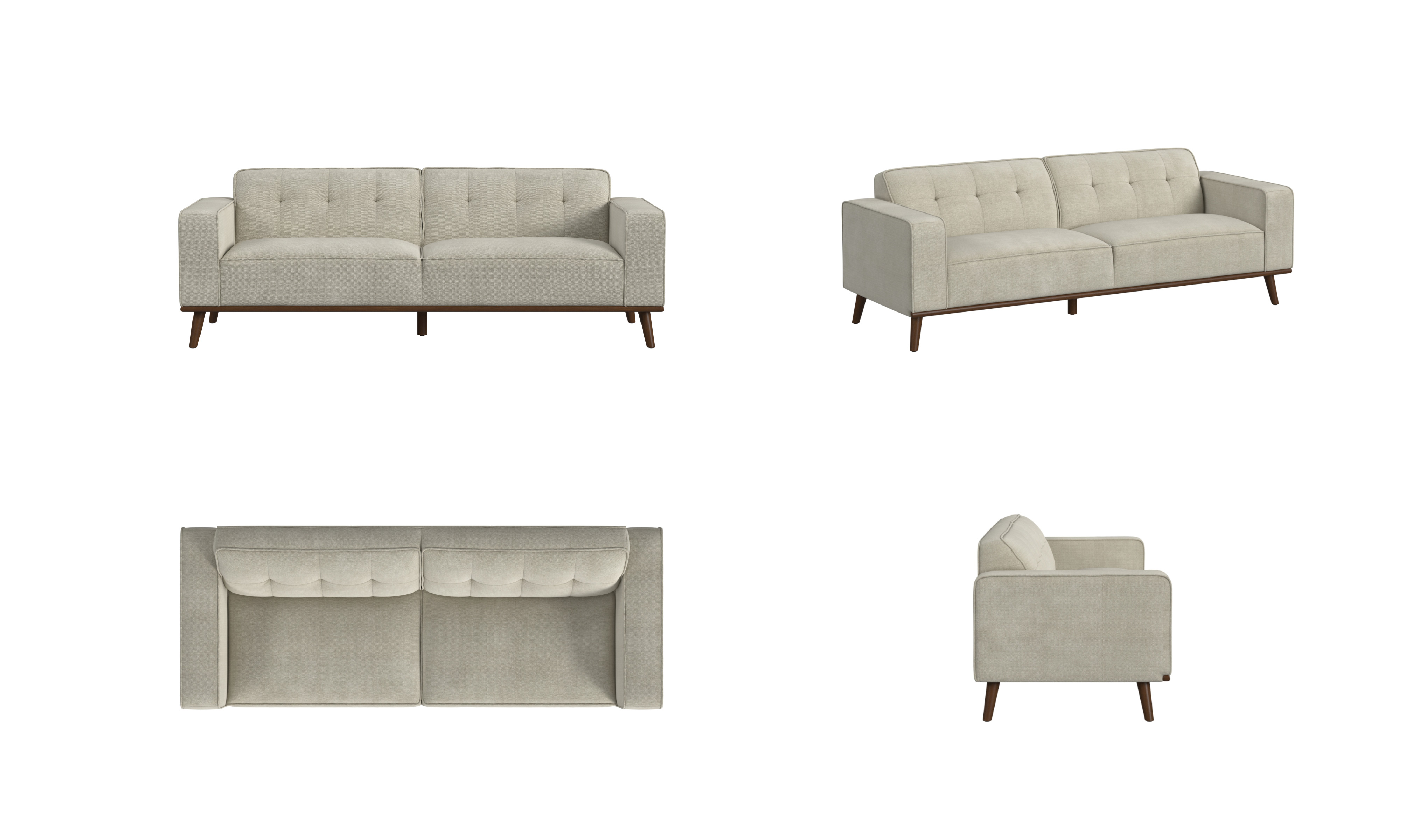
Complete angle sequence
Evenly spaced product views carry the shopper from the front to the sides and back without changing the framing.
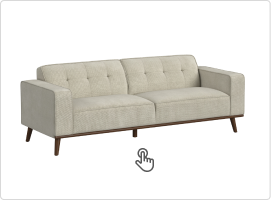
Shopper-controlled inspection
A drag or swipe gesture advances through the frames so the shopper controls which angle is visible.
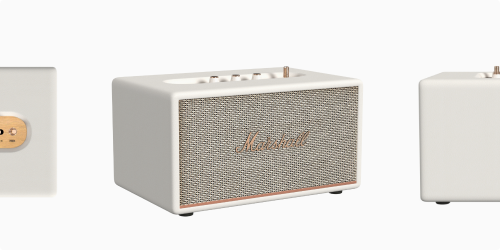
Consistent product alignment
Keeping the item centered and at the same scale prevents distracting jumps as the sequence moves between angles.
The distinction
360 product spin vs. interactive 3D
Both let shoppers explore a product, but they deliver that experience in different ways.
| Compare | 360 product spin | Interactive 3D |
|---|---|---|
| What the shopper sees | A sequence of predetermined product images | A 3D model rendered in real time |
| View control | Drag or swipe through fixed angle increments | Orbit, zoom, and inspect within the viewer's controls |
| Underlying asset | An ordered set of captured or rendered frames | Geometry, materials, textures, and viewer data |
| Experience scope | A controlled rotation around a defined axis | A flexible view of the product in three dimensions |